LoanPro Connect

LoanPro Connect is a paid feature. Contracting structure typically includes a base platform fee to enable it, alongside usage-based charges. If you are interested in learning more about LoanPro Connect or want to enable the feature, please reach out to your LoanPro representative.
We are launching an enterprise-level integration builder, LoanPro Connect, directly within the LMS. LoanPro Connect allows you to connect external applications, execute scheduled processes, and build custom automated solutions that are tailored to your organizational needs.
Previously, you had to rely on an off-platform setup to manage integrations and automations.
Where can I find it?
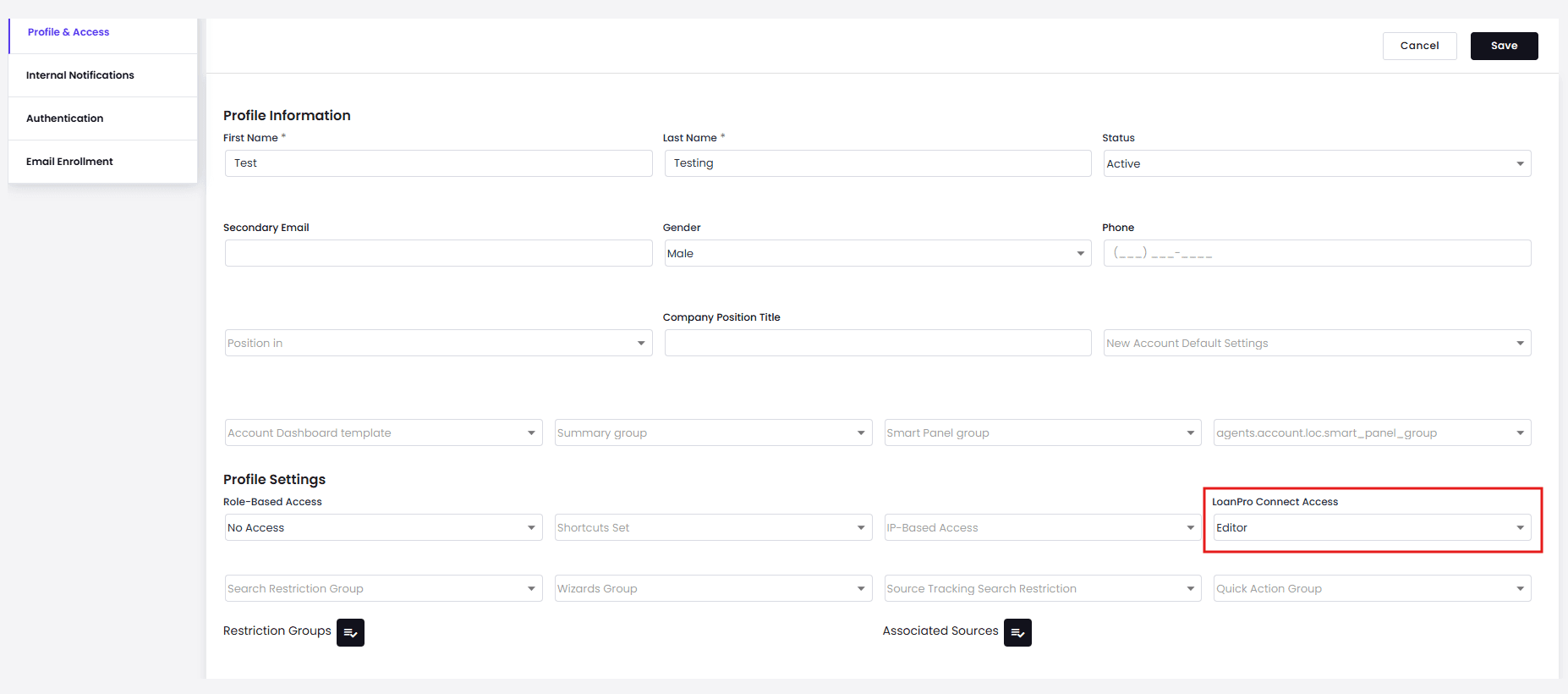
You can configure user access in Users > Agent Users > select an agent user > Profile & Access > Edit > LoanPro Connect Access.
LoanPro Connect is then accessible by selecting the User Profile in the top right corner of the UI and choosing “LoanPro Connect” from the dropdown menu.
How can I test it?
Follow these five steps to test the feature.
Step 1: Configure user access roles
- Navigate to Users > Agent Users > select an agent user > Profile & Access > Edit > LoanPro Connect Access.
- Select an access role.
- No Access (Default): Agent user cannot access LoanPro Connect.
- View Only: Agent user can navigate to LoanPro Connect but is restricted to only viewing existing recipes and connections.
- Editor: Agent user can view recipes, edit existing ones, and create new recipes within the LoanPro Connect parent folder.
Step 2: Open the interface
- Access User Profile > LoanPro Connect.
Step 3: Establish a connection
- Navigate to the Connections tab.
- Select Create > Connection.
- Choose a third-party application, then follow the guided integration steps to establish a connection.
- Note: Only the listed applications are supported. Adding separate applications is not permitted.
Step 4: Create and configure a recipe
- Navigate to the Recipes tab, then select the LoanPro Connect folder.
- Select Create > Recipe.
- Choose a recipe name, location, and starting point (e.g., Run on a schedule or Trigger from a webhook). Then click the ‘Start Building’ button.
- Configure your recipe workflow:
- Trigger: The specific event that starts the workflow.
- Actions: The sequential steps executed in your connected apps.
- Logic: Optional, built-in rules that add conditional branching, repeat loops, or error handling to refine your workflow.
- Click Save when finished.
Step 5: View logs
- Trigger or execute your recipe to run a job.
- Navigate to the Logging tab to check active run logs, error messages, and job details.
- Navigate to the Dashboard tab to verify:
- Real-time metrics for successful and failed jobs.
- Task utilization stats.
- Ensure filtering by App Connections, Recipe Tags, and individual recipes works as expected.
Key benefits
- Extensive third-party integration
- Native background automation
- Custom workflows